WordPress is one of the most commonly used Blogging platform used by Bloggers these days. Other than being a Blogging platform it is also web software which allows you to make your site beautiful. Once you install WordPress on your site you can add many plug-ins. Many new bloggers like me first like to learn about the WordPress before trying it online.
In this tutorial, I will be teaching you how to install WordPress on your localhost using Wamp server. While writing this article I have taken into consideration that you are a complete beginner. I assume that you have already installed wamp server on your machine where you want to install WordPress.
Things you will require.
- Already Installed Wamp Server.
- Internet connection.
Follow the following steps:-
1.) Download WordPress
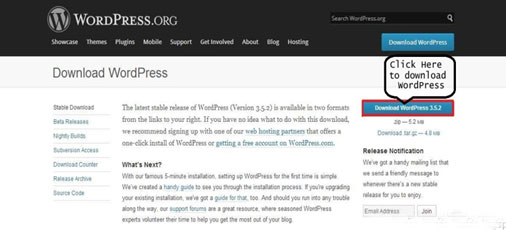
To Install WordPress you will have to download the WordPress software. To download WordPress visit Click Here. You will see the window which is shown in the below image, to download follow the Image.
2.) Extract the WordPress Software which you downloaded.
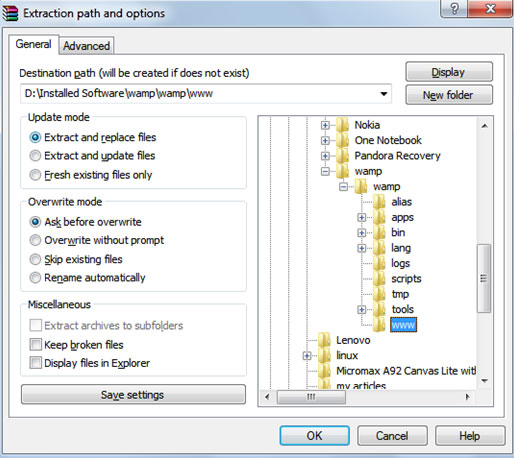
Once the download is completed, Start your wamp server and extract the zip file into the www directory in wamp server as shown in the below Image.
Now you have successfully Installed WordPress on your localhost, but the main part comes here, after Installing WordPress you should configure it with localhost.
3.) After extracting WordPress in the directory, Start the wamp server and open the directory of the folder, if you follow the above steps then open localhost/WordPress. As soon as you open it. You will see the window in the below Image, If you don’t see the below Image then it is due to installation error.
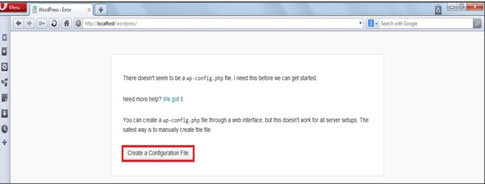
If you see a window as shown in the above Image then click on the Create Configuration File button
4.) As you click the button, a new page will be shown which will be like the below Image, Click on the Let’s go! Button
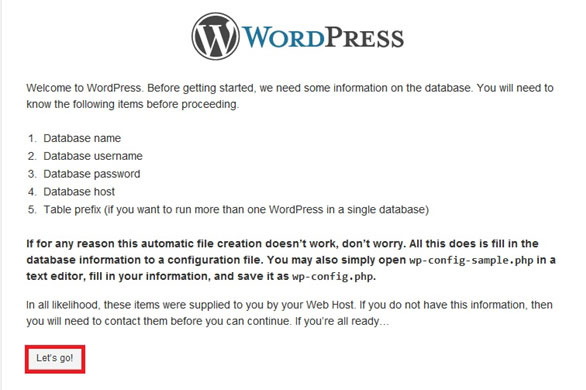
5.) As you click the Let’s go! Button you will see a form as shown in the below Image in which you will be asked to enter the Name of the database, MySQL username and password etc before clicking on the submit button, you will have to make a database.
To create a Database you can open MySQL console from the wamp menu and just write the below query in the console Create database wordpress;

6.) Filling the Database connection details, To store your posts, comments and all other WordPress related data you made a database but what is the use of the databases if it is not connected? So to connect the database with your localhost you will have to submit the Connection details form.
- Enter the name of the database you made in the first field. I’ve made the database named wordpress and you can also make it if you use the statement I’ve written above in 6th Step.
- In the second field enter your MySQL username, By default the username is root, so I’ve written root but if you have changed the username then enter the name which you have entered before
- In the third field you will be asked to enter your MySQL password, I’ve entered mine you can enter your password which you have used for MySQL
- As you will be installing WordPress on your localhost you make the host of the database as localhost
- Leave the last field Table Prefix as it is and click on Submit button.

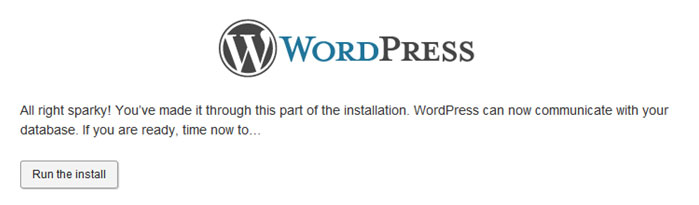
7.) On clicking the Submit button you will see the window which is shown in the below Image. Now click the Run the install button.
8.) On clicking the Run the Install button you will see the window as shown in the below Image. In that window you will have to fill-up the information as asked. In place of Site title you will have to enter the desired title which you would like to give to your localhost site, In place of username enter the desired username, enter the desired password and enter the email address. Finally click on the Install WordPress button

9.) On clicking the Install WordPress button you will be asked to login so that you get access to your WordPress dashboard.
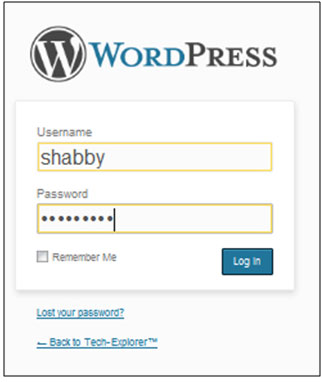
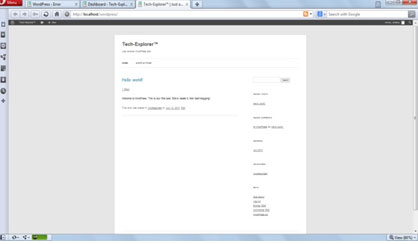
10.) That’s it. You’ve successfully Installed WordPress, Now its time to test it! Login and do everything what you can do with an online site installed on WordPress. To access your site simply write localhost/wordpress in the URL and click on Enter.